
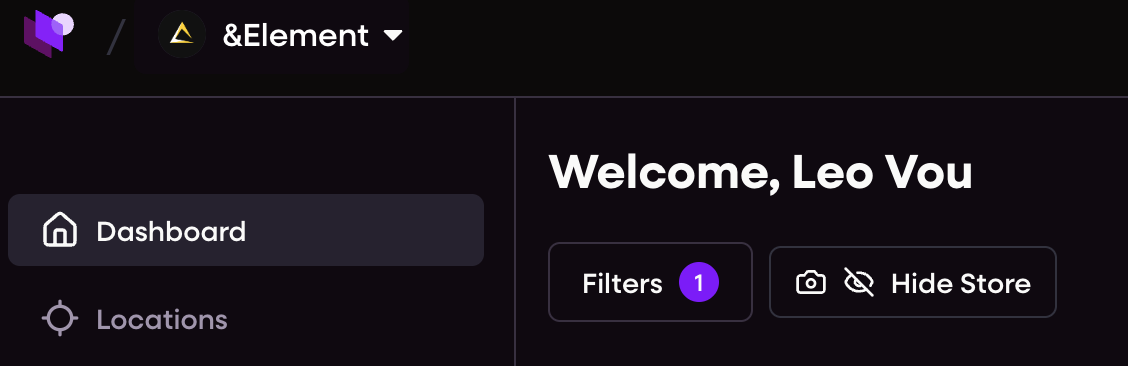
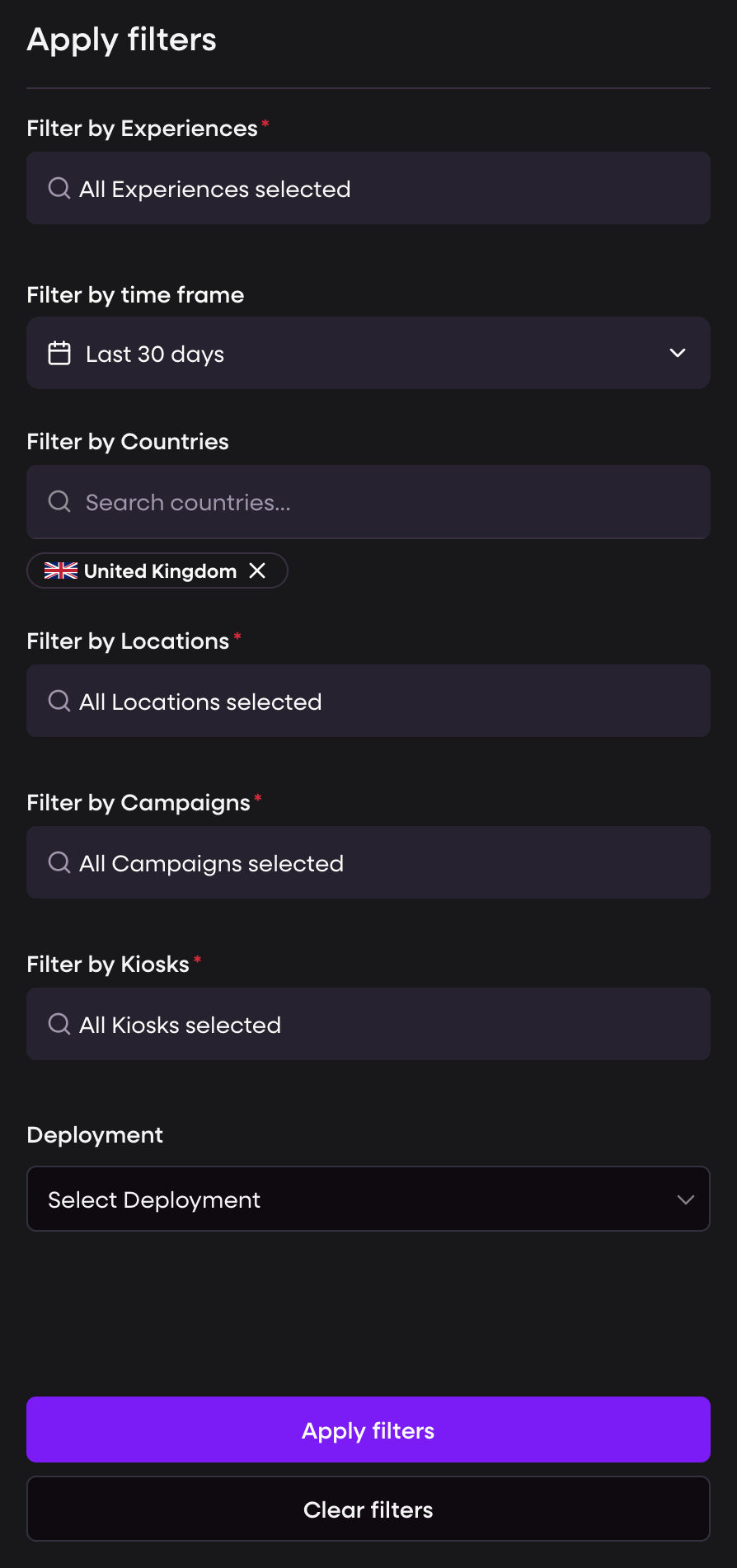
Filter catalog
Experience: limits cards and charts to one experience. Useful when you run multiple experiences in parallel.
Time Range: selects the analysis window. Analytics use UTC. Keep the same window when comparing periods.
Campaigns: shows data only for the selected campaign versions tied to the chosen experience.
Locations: include or exclude specific stores or sites.
Countries: top-level geography filter. Viewers and Managers only see countries they are permitted to access.
Deployment Type: switch between device classes such as kiosks or cameras. Widgets adapt to what is relevant.
Note: Region, hub, or locale filters are not standard in this release. If you need them, tell us your use case.
How filters combine
Filters use AND logic: Experience + Time Range + Campaigns + Locations + Countries + Deployment Type.
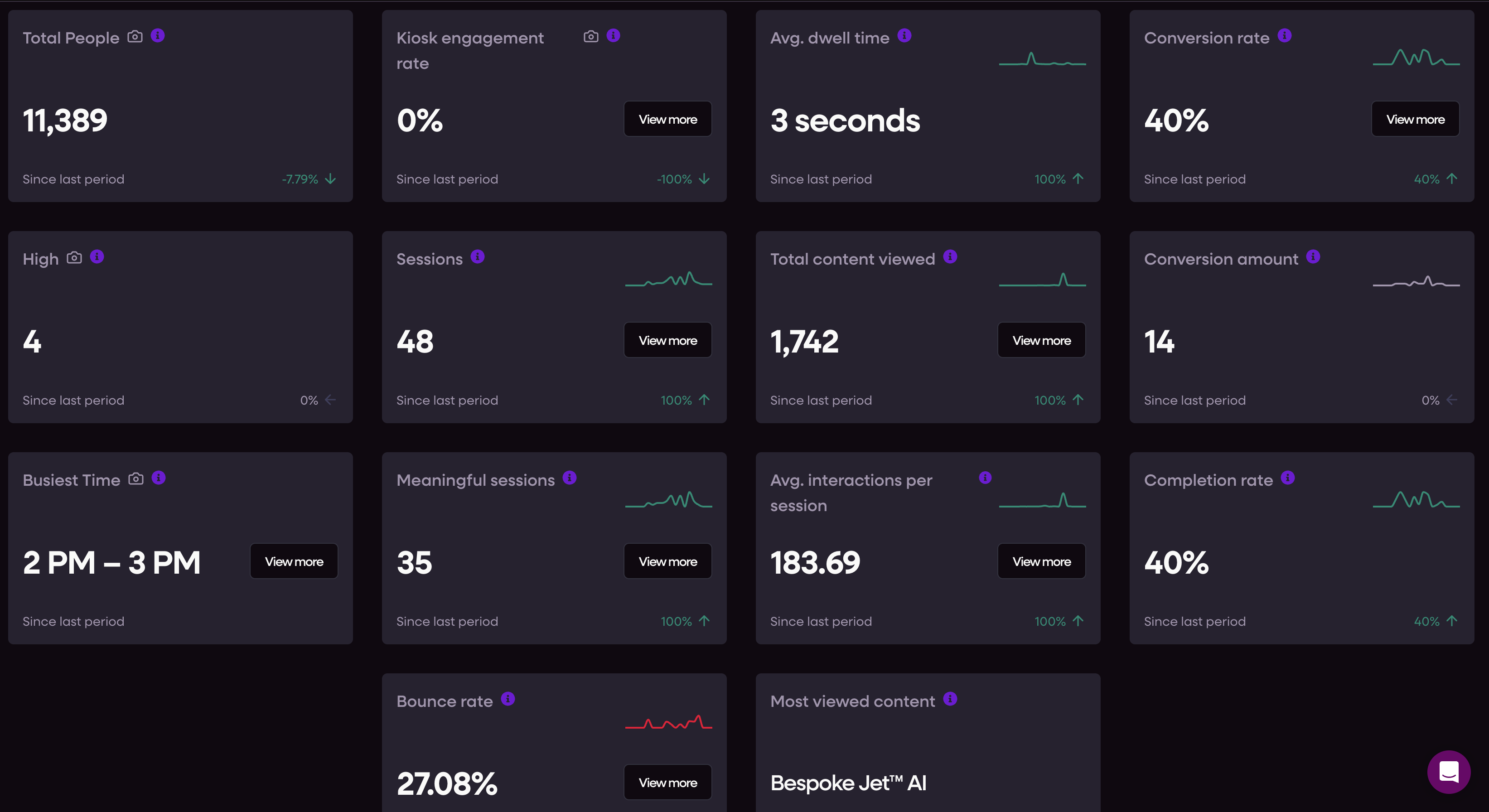
If a filter removes all data for a widget, you will see an empty state for that card.
Scope and propagation
Filters set on the main dashboard apply to the current view only.
When you drill into a store or device page, key filters like Time Range are carried over when possible.
Exports inherit the active filters at the time of export. (CSV export is rolling out; see the Exports page.)
Persistence
Filters are not persisted between sessions. When you return, defaults load and your previous filter set is cleared.
Saved segments are not supported yet.
Access control and visibility
Admin: global access to all countries and locations.
Manager: read and write access to assigned countries only.
Viewer: country-restricted. Dashboards automatically filter to permitted countries.
Location access is validated by country. You cannot filter to locations outside your allowed countries.
Normalisation
Default charts show raw values per kiosk or per camera.
Optional normalisation views (per open hour, per m², per staff count) can be provided on demand for fair comparisons.
Freshness and timezone
Data is near real-time. Each dashboard refresh runs fresh database queries.
Analytics time is UTC. Campaign scheduling uses London time, but analytics do not.
Practical examples
See one campaign’s impact this week
Experience: select → Campaigns: select → Time Range: This week → Deployment Type: Kiosk.Review footfall for two stores today
Deployment Type: Camera → Countries: select → Locations: pick the two stores → Time Range: Today.Find outliers by country
Countries: select a country → Time Range: Last 30 days → Deployment Type: Camera → sort cards or tables.
Tips
Start broad with Countries + Time Range, then narrow with Experience and Campaigns.
Keep the same time window when comparing before or after changes.
If cards look empty, clear filters and add them back one by one.
Known limitations
No saved segments yet.
Filters reset when you leave the dashboard.
CSV export is in progress. Other formats and scheduling are not available yet.