
🆕 1. Register your account
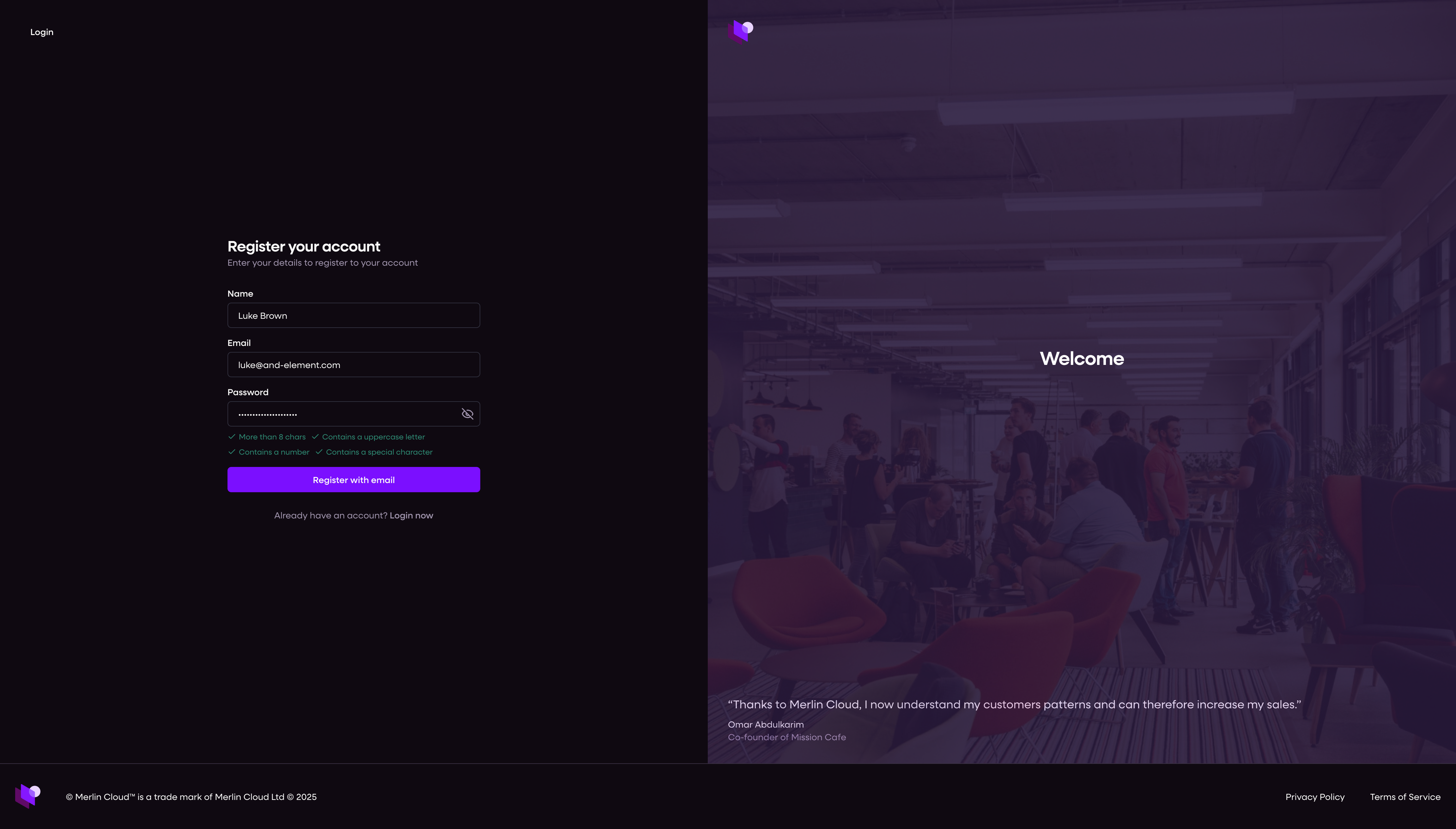
To create your Merlin Cloud account:
Go to app.merlincloud.ai
Click Register now at the bottom of the login screen
Enter your email address and submit
You’ll be prompted to check your inbox for a verification link before accessing the dashboard.
✉️ 2. Verify your email
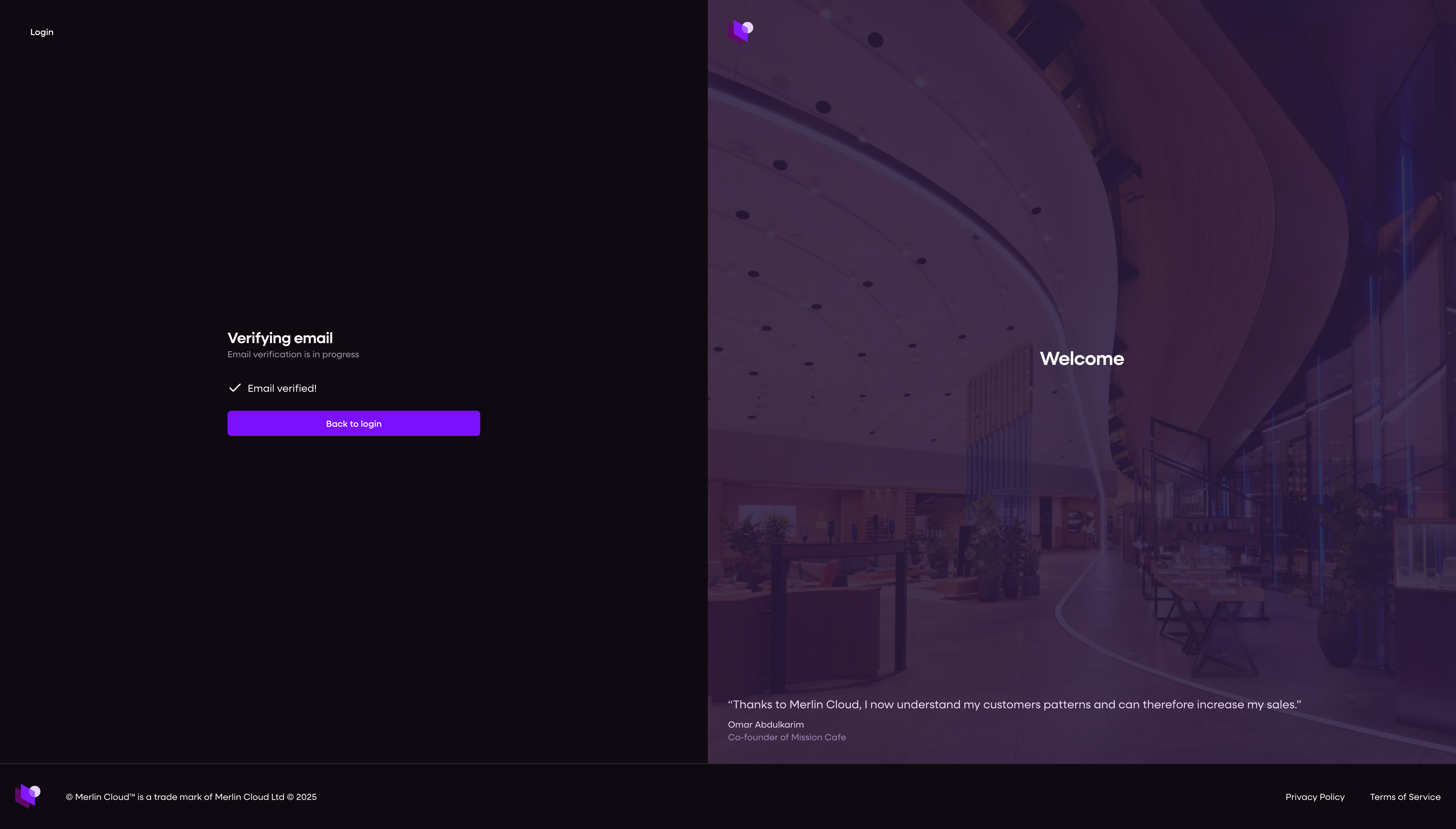
Once you’ve submitted your email:
Check your inbox for a message from noreply@merlincloud.ai
Click the link inside the email – it will say something like "Verify your email"
You’ll see a confirmation screen with Email verified!
Click Back to login to continue
Don’t see the email? Check your spam or junk folder. You can also return to the registration screen to resend it.
🔐 3. Log in going forward
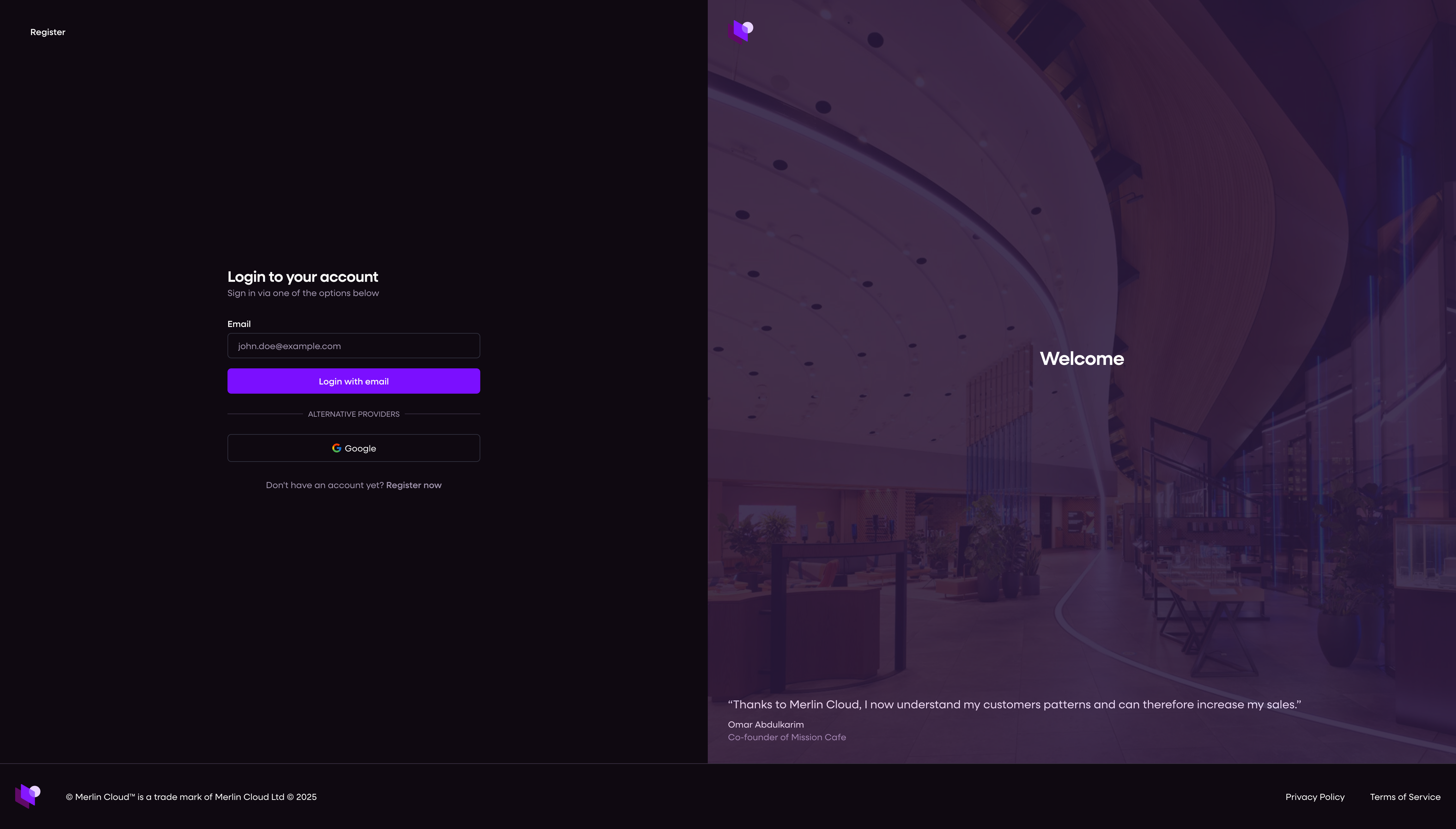
Now that your email is verified, you can log in to app.merlincloud.ai anytime using one of these methods:
Magic sign-in link
Enter your email and click Login with email
A secure link will be sent to your inbox
Click it to be logged in instantly
Google login
Click the Google icon under Alternative Providers
Use your Google credentials to log in
Both options are secure and passwordless – you’ll stay logged in unless you manually log out or clear your cookies.
🏢 4. Creating your organisation
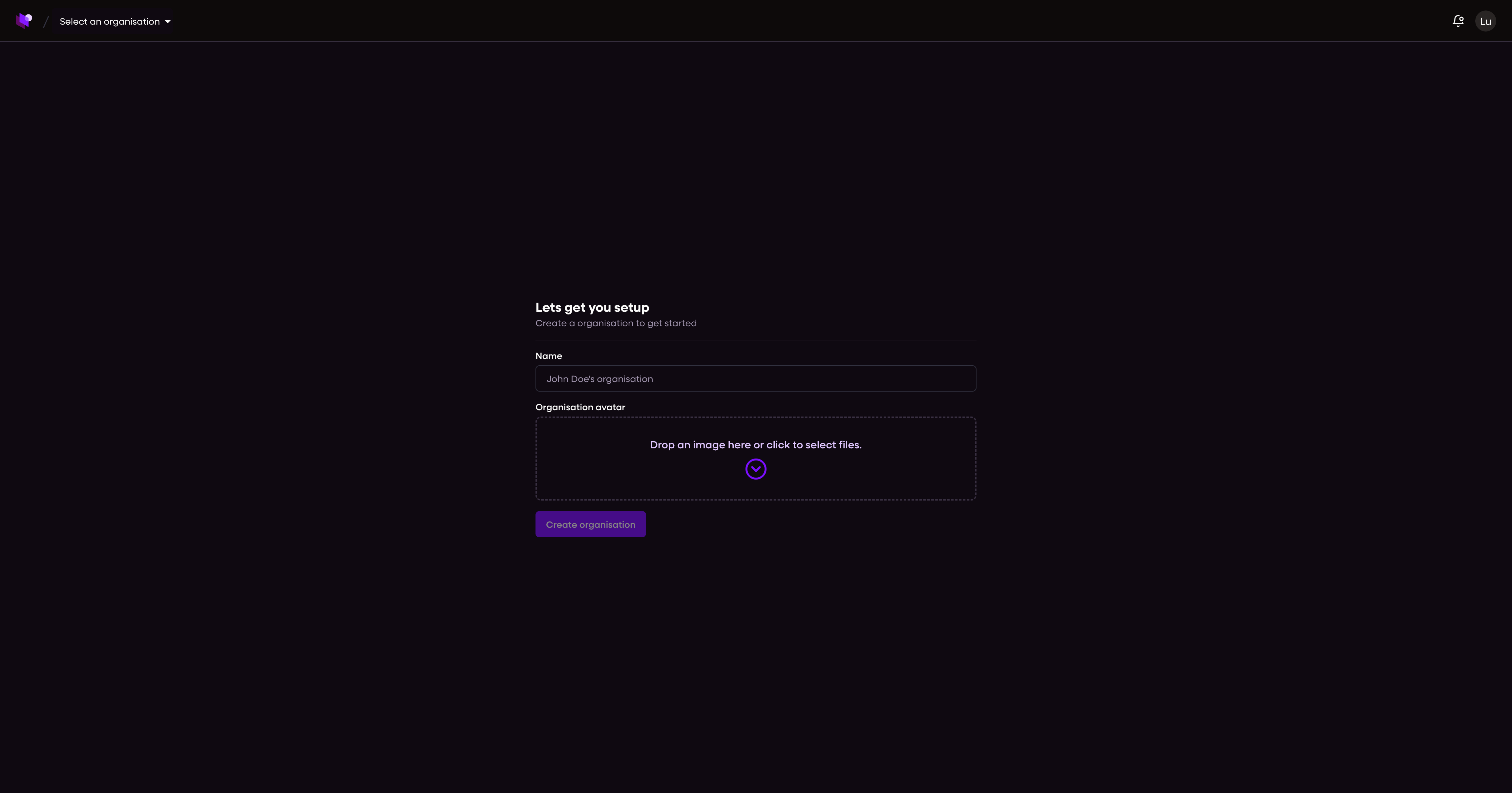
https://app.merlincloud.ai/dashboard/organisations/create
Once you've verified your email and logged in for the first time, you'll be prompted to create your organisation.
To get started:
Enter your organisation name (e.g. “John Lewis”)
Upload your organisation logo (optional but recommended)
Click Create organisation
This name and logo will appear throughout the dashboard, including in your sidebar and organisation switcher.
You can update these settings later under Settings > Organisation Info.
Once created, you'll land on your dashboard and be guided through the setup tutorial to add your first kiosk or camera.
🔁 Switching between organisations
If you're a member of multiple teams:
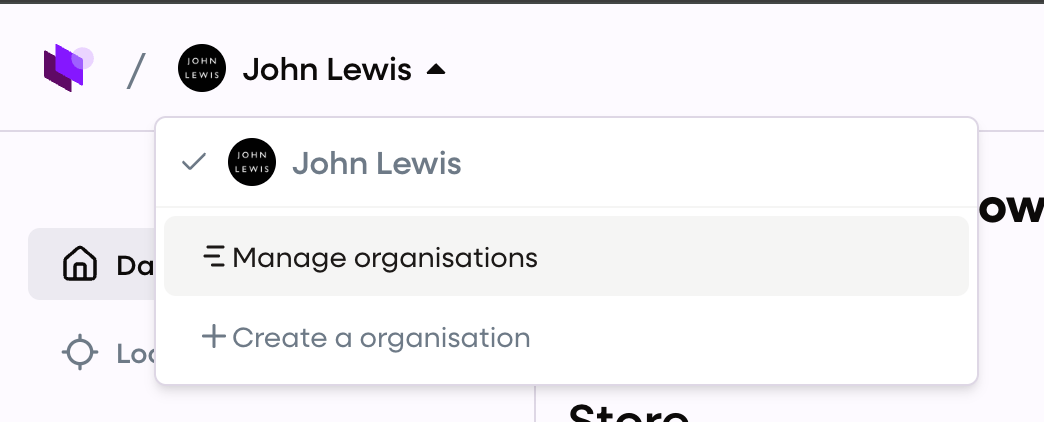
Click your profile icon (top right)
Select Switch organisation
Choose the workspace you want to enter
👤 Updating your profile
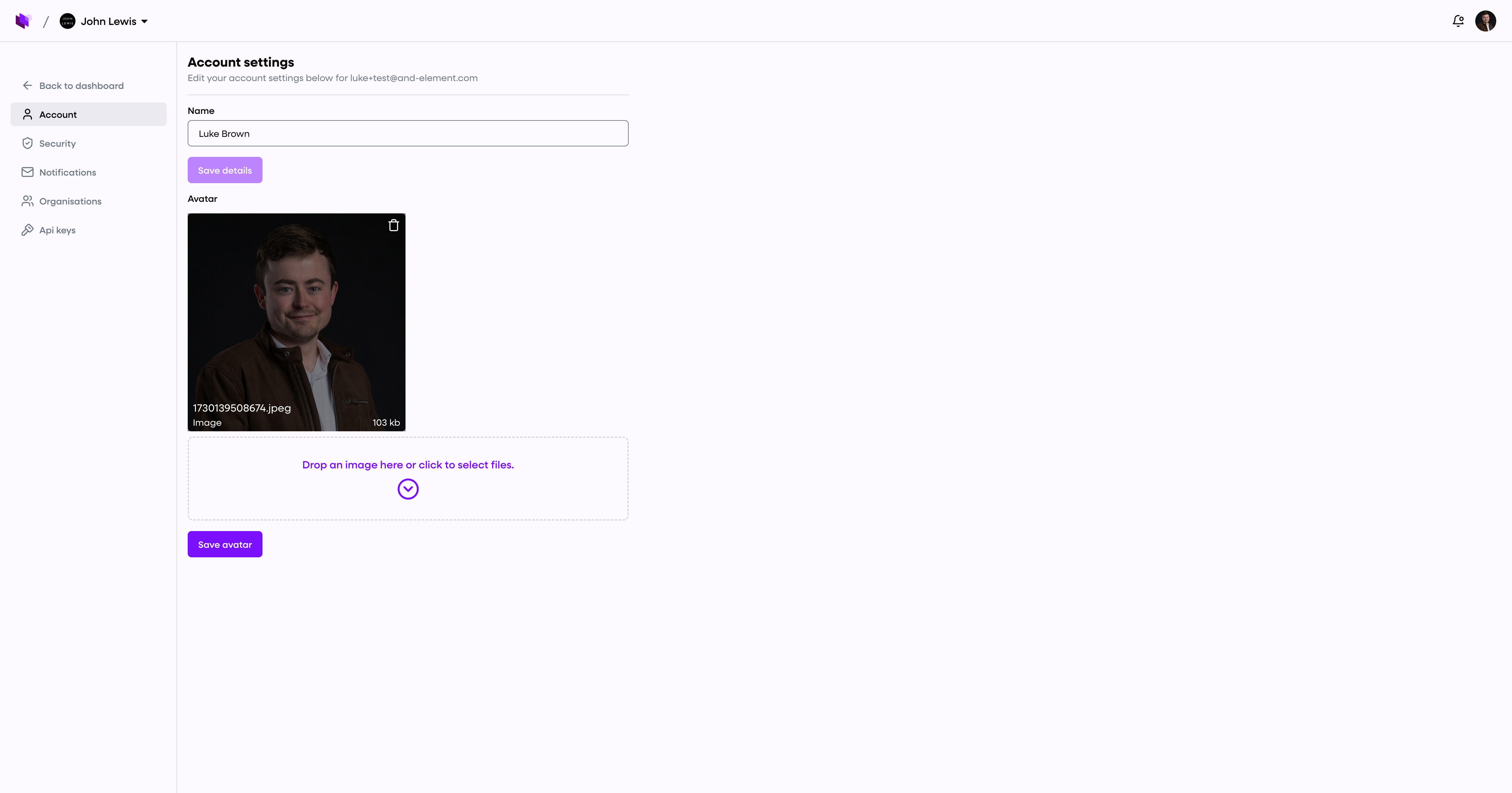
https://app.merlincloud.ai/dashboard/settings
To update your name, language, or display preferences:
Click your profile icon
Select My profile
Make changes as needed
Click Save
🌙 Toggle dark mode
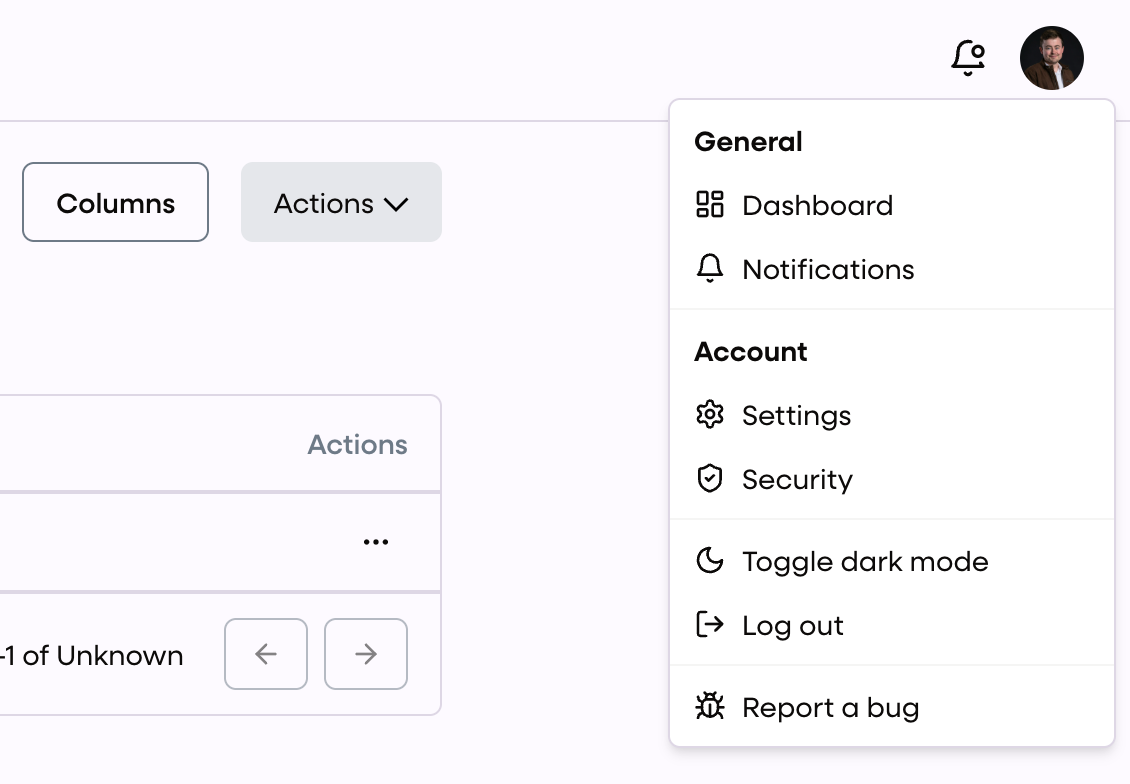
Prefer a darker interface?
Click your profile picture in the top-right corner, then select Toggle dark mode.
Your preference will be saved automatically next time you log in. Great for reducing eye strain during late sessions!